Download
Get MaxiMouse.
One download for everyone, on Mac and Windows. MaxiMouse asks you to sign in when it opens, and your account decides what you get.
macOS 14 or later, on a Mac with Apple silicon (M1 or newer)
On Windows? Download for Windows
One download
Your account decides the rest.
Sign in when it opens
MaxiMouse opens on a sign-in screen and stays locked until you sign in to a plan. No plan yet? The sign-in screen links to them.
Your plan picks the features
Base turns on the hand mouse. Pro adds voice control, dictation and 3D models. It is the same app, so a new plan needs no new download.
Beta testers get early builds
If you test MaxiMouse with us, we mark your account, and after you sign in the app moves to beta builds by itself. Everyone else gets stable builds.
Install
What you'll see, and what to click.
Your computer asks a few questions the first time MaxiMouse opens. Each one below is safe to answer as shown.
-
1
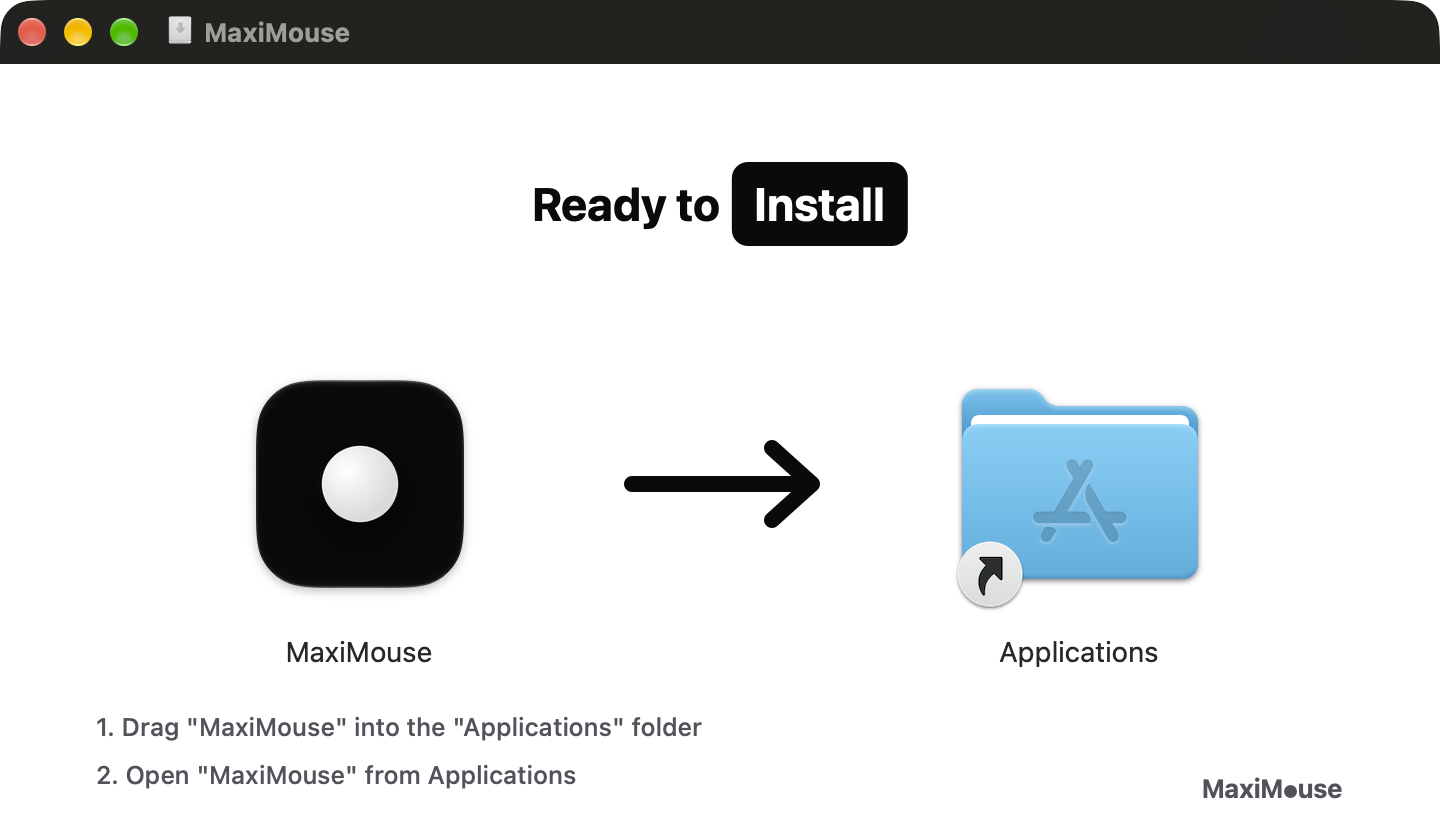
Open the file, drag MaxiMouse to Applications
Open the MaxiMouse file from your Downloads folder. Its name ends in .dmg. A window shows MaxiMouse, an arrow and your Applications folder.
Drag MaxiMouse onto Applications. Then you can close the window.
-
2
Open MaxiMouse
Open Applications and double-click MaxiMouse. The first time, your Mac asks:
“MaxiMouse” is an app downloaded from the Internet. Are you sure you want to open it?
Click Open.
If your Mac says instead that Apple could not verify MaxiMouse, click Done. Then open System Settings → Privacy & Security, scroll down, and click Open Anyway beside MaxiMouse.
Picture to comeYour Mac asking whether to open MaxiMouse -
3
Sign in
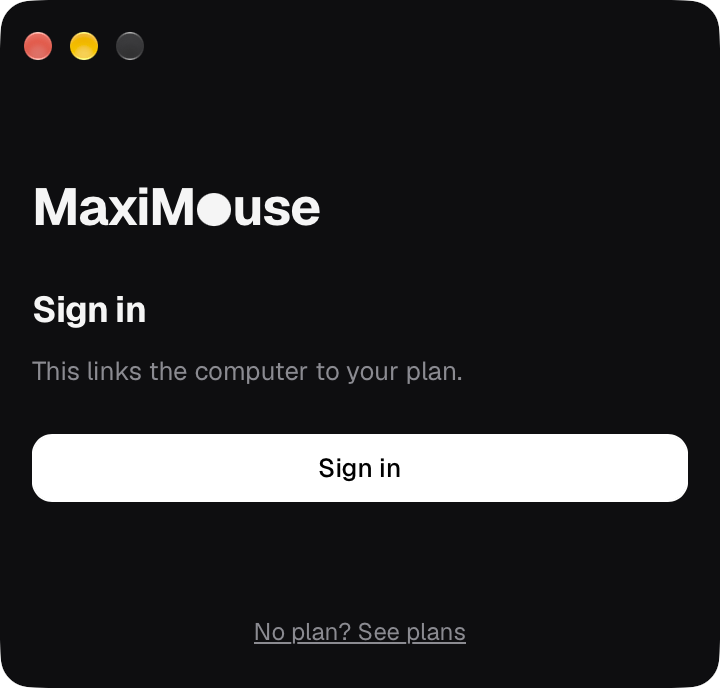
Click Sign in. Your browser opens maximouse.io. Sign in there with your email, and MaxiMouse unlocks.
-
4
Allow what MaxiMouse needs
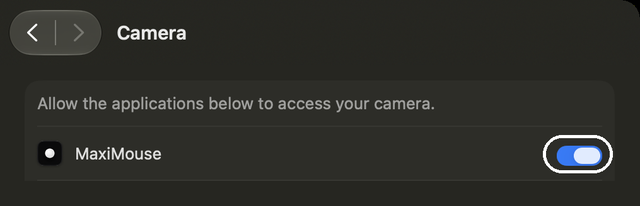
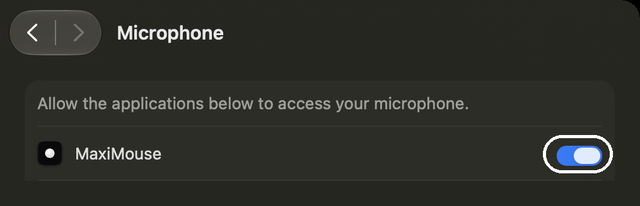
Next, MaxiMouse lists four things to allow. Click Allow beside each one. For some, MaxiMouse opens the right page of System Settings: turn on the switch beside MaxiMouse, as in the pictures.
Picture to comeMaxiMouse listing what to allow-
Camera
Sees your hands. Your Mac asks in its own box: click Allow. If you clicked Don't Allow, turn the switch on in Privacy & Security → Camera.
-
Microphone
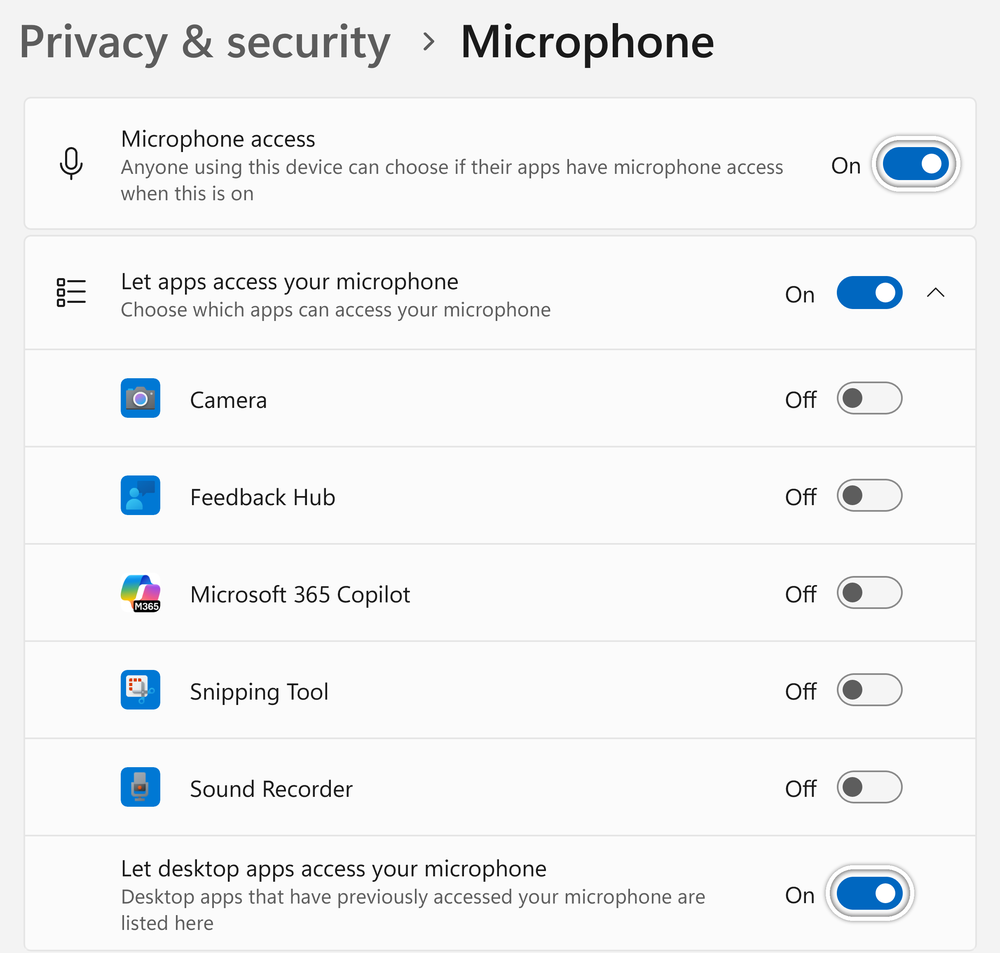
Hears voice commands. Click Allow when your Mac asks, or turn the switch on in Privacy & Security → Microphone.
-
Accessibility
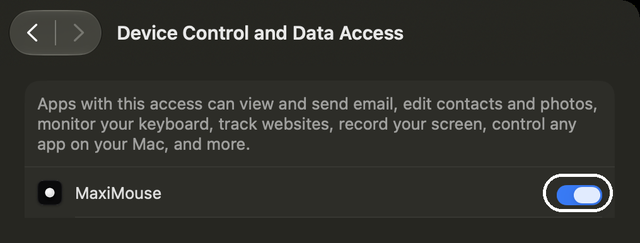
Moves the mouse and types. Turn on the switch beside MaxiMouse. macOS 27 calls this page Device Control and Data Access; older versions call it Accessibility. Your Mac may ask for your password.
-
Screen Recording
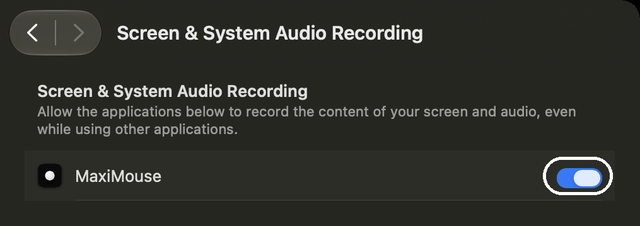
Reads the words on screen, so you can click a button by saying its name. Turn on the switch beside MaxiMouse, then quit MaxiMouse and open it again.
-
-
1
Open the file
Open the MaxiMouse file from your Downloads folder. Its name ends in setup.exe.
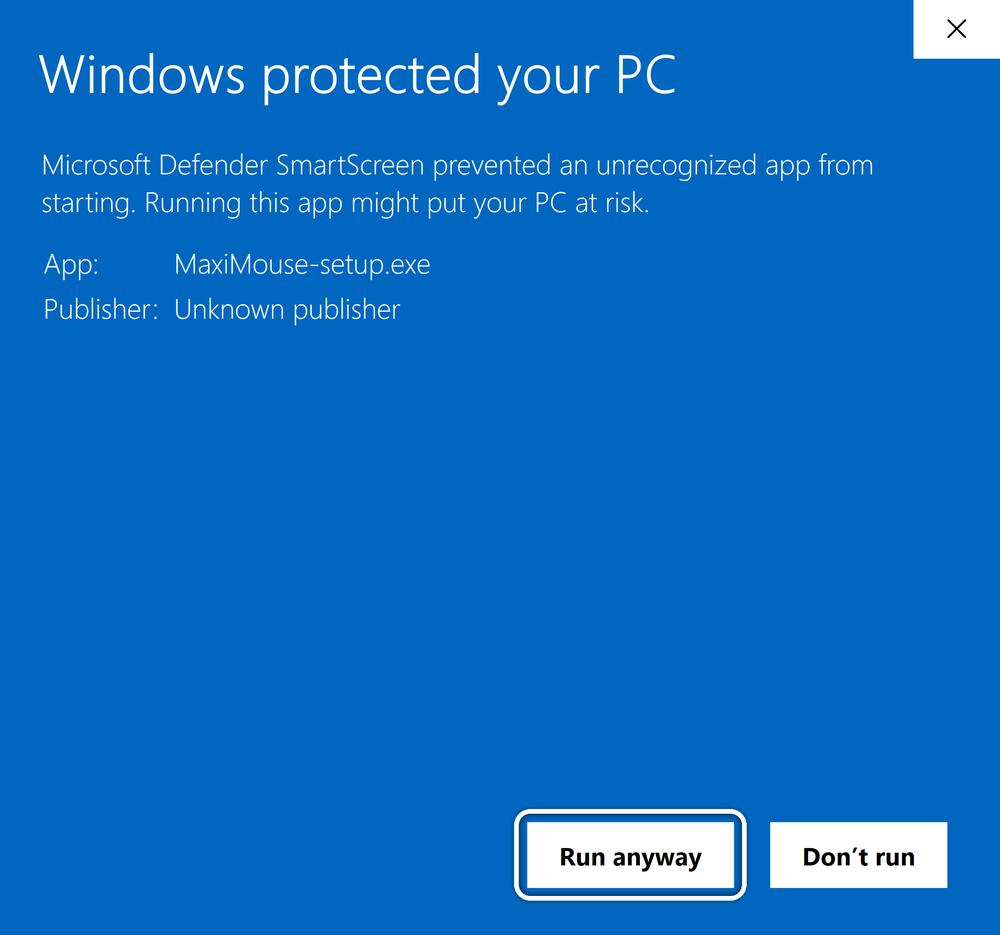
Windows may show a blue box that says “Windows protected your PC”. It does this for apps it has not seen often. Click More info, then Run anyway.
No blue box? Go on to the next step.
-
2
Install
Click Next and Install. On the last page, click Finish and MaxiMouse opens. From then on it is in the Start menu.
Picture to comeThe MaxiMouse installer -
3
Sign in
Click Sign in. Your browser opens maximouse.io. Sign in there with your email, and MaxiMouse unlocks.
Picture to comeThe MaxiMouse sign-in screen -
4
Allow the camera and microphone
If Windows asks whether MaxiMouse may use your camera or microphone, click Yes.
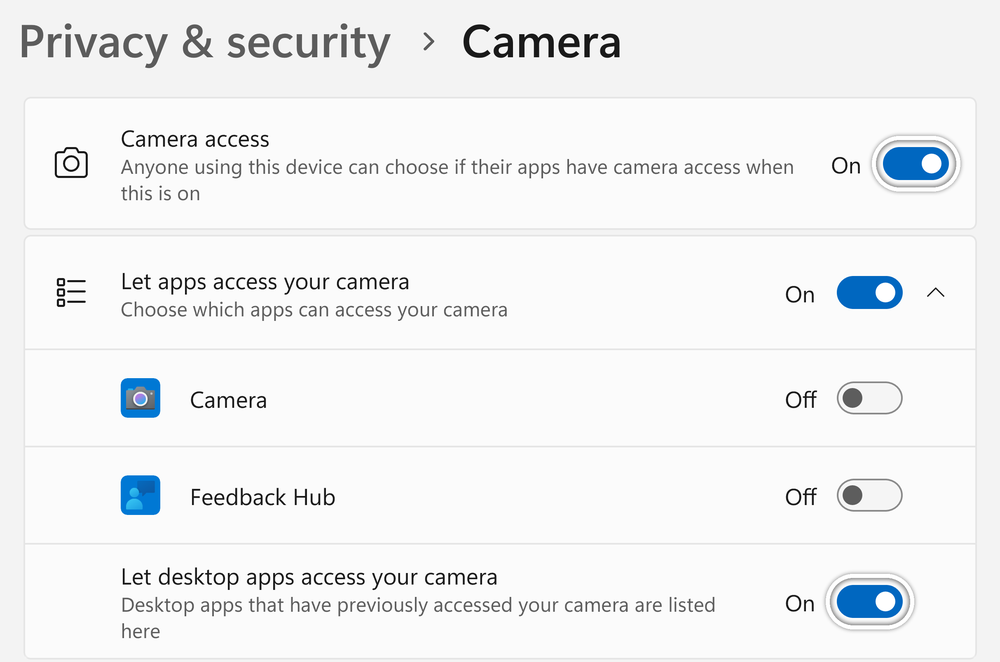
If the camera stays dark, open Settings → Privacy & security → Camera, and turn on Camera access and Let desktop apps access your camera. Do the same under Microphone.
Then
Wave, and you have the mouse.
Learn the moves
Hold up your hand and wave. The hand guide shows every move, from the first wave to letting go.
It updates itself
When a new version is ready, MaxiMouse tells you. It installs when you click Restart, never while you work.
Stuck?
Write to support@maximouse.io and say what your screen shows. A picture helps.